
Go to Money > Account activity and open the Rent, fees & adjustments tab, or open Reports > Rent report for the full rent history with charts.
Who this is for: Vendor
These steps use the New Experience. If your menu looks different, click Switch to New Vendor Experience at the top of the page.
Quick view: Account activity
- In the menu, go to Money > Account activity.
- Click the Rent, fees & adjustments tab.
- Pick a period, such as This year or All time.
- Click an entry to see its details, including the space #.
Your current booths and monthly rent are under avatar ▾ Settings > My Booths.
Full history: Rent report
- Click Reports in the menu.
- Under Where's my money?, click Rent report. This opens the classic Rent report.
- Check the Store Selector (top right) and Date Range (top left).
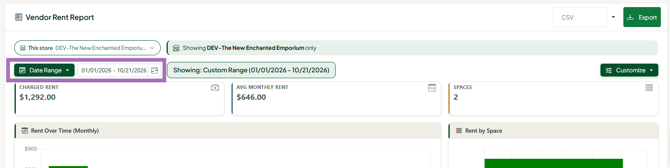
The report is most useful when your store charges rent through Syncrostore with consistent monthly charges. To understand how rent fits into your balance, see the Vendor Balance article.
Cards and charts: Charged Rent, Average Monthly Rent, Number of Spaces/Booths, Rent Over Time and Rent by Space.
Grid columns:
- Store (if you're a vendor at several stores)
- Credit Debit Amount (added to or taken from your balance; debits are in parentheses)
- Credit Debit Type (short description, such as rent)
- Space ID (the booth or space)
- Item ID (currently unused)
- Date Updated
- Transaction ID
- Store ID (the store where the charge was made)
- PP Transaction ID (currently unused)
For how to filter, sort, choose columns and export, see "How do I use my vendor reports?".
Troubleshooting
- A rent charge looks wrong or doubled: rent posts on the 1st, but payouts use a cutoff date, so two months can land in one payout. If a charge still looks wrong, contact your store; only the store sets and charges rent.
- The report is empty: check the Store Selector and Date Range, and clear any blue (filtered) column.
