
The Taxes report shows the sales tax collected on every transaction in the date range you pick; use Tax Collected for your sales-tax filing. Open it from Reports, under Tax, by choosing Taxes.
Who this is for: Store admins.
These steps use the New Experience. If your menu looks different, click Switch to New Experience at the top of the page.
Open the report
- Go to Reports.
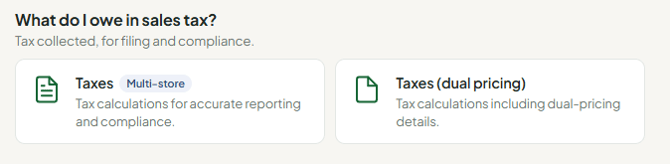
- Under Tax, choose Taxes. (Dual pricing stores also see Taxes (dual pricing).)
- Set the date range at the top of the report. Start and end dates are both included; filtering is by calendar day.
Summary cards
- Tax Collected - sales tax actually collected. This is the figure for your filing.
- Taxable Sales and Non-Taxable Sales - how the sales in the range split between taxed and untaxed.
Charts show Tax Collected Over Time and Tax by Payment Type. Tax Expected and Tax Difference (what your configured rate says you should have collected, and the gap) are only on the Taxes (dual pricing) report.
Where the rate comes from
Your rate is the sum of the state, city and local rates in your store settings (Settings > Overview, Money tax & payments, which opens the classic store settings). Only one current rate is stored, so if your rate changed, older transactions are compared against today's rate. These rates feed the expected-tax figures on Taxes (dual pricing); if no rate is set, those columns stay blank instead of showing 0%.
Customize and export
- Customize (top right) shows/hides columns and panels; your choices carry into exports.
- Choose CSV, Excel (XLSX) or PDF under Export Format and click Export. The file matches what's on screen. CSV or Excel is easiest for a tax preparer.
Multi-store
If your store is in a group, use the store scope picker to report across stores. Each store is costed at its own rate, and each card gets a By store breakdown.
FAQ
- Which report do I use for my sales-tax filing? This Taxes report. It should match the Sales Detailed report's Tax Collected for the same dates. Dual pricing stores use the Taxes (dual pricing) report for their filing figure.
- Why is Effective Tax % different on some sales? (Taxes (dual pricing) report.) A manually adjusted tax, a partly exempt sale, or rounding. Exempt sales read 0%.
- Why doesn't Actual Collected include the tip? Tips aren't taxable; they're in the Gratuity column.
- What's a Collection Discrepancy? The tenders don't add up to subtotal plus expected tax. A few cents is rounding; more is worth opening the transaction (Sales > Transactions, search the transaction #).
Troubleshooting
- Nothing shows up: check the date range, then confirm the store/scope.
- A store is missing from a group view: its data couldn't be reached; contact support if it persists.
