
Click your store name at the top of the page and pick the other store in Switch store or vendor. Inventory, labels and account activity always belong to the store you're signed into, and each store needs its own confirmed login.
Who this is for: Vendors with booths at more than one Syncrostore store.
These steps use the New Experience. If your menu looks different, click Switch to New Vendor Experience at the top of the page.
Which store am I working in?
- The store name button at the top of every page shows the store you're signed into. Everything you add, edit, import or print goes to that store.
- The store card at the bottom of the left menu shows the same store, with your vendor number under it.
- Home, Sales, Inventory and Money always show the store you're signed into. They have no store dropdown.
- The older report pages (opened from Reports) still have a Store Selector dropdown. It only changes which numbers you're viewing. It does not switch stores.
Switch to another store
- Click the store name button at the top of the page (or the store card at the bottom of the menu).
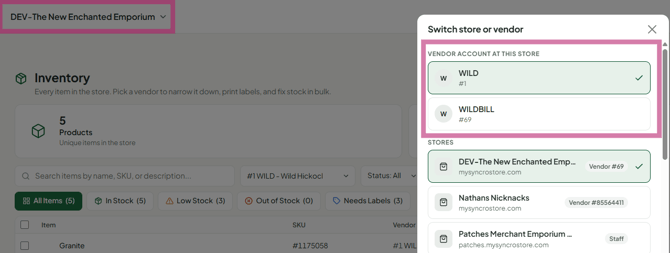
- Under Stores, pick the store. If you have many, type in Find a store.
- If the store is under Your stores on other sites, select it to go to that store’s site. Use the same email and password.
- Check the store name at the top before you add inventory or print labels.
You can also go straight to a store's login page: https://<thatstore>.mysyncrostore.com/Account/UserLogin. Sign in with the same email and password you use everywhere.
Getting set up at a new store
- The new store must add you and send you an invitation. Syncrostore support can't invite you to a store.
- You’ll get an email saying you’ve been added (check spam). If you already have a Syncrostore login, just sign in with your usual email and password. There’s no new account to create. If you’re new to Syncrostore, click the link in the email to set your password.
- Make sure the store adds you with the same email you use at your other stores. A store that has you under a different email won’t appear in your list.
Copying items to another store
- Go to Inventory and tick the checkbox next to each item you want to send.
- In the bar that appears, click Transfer.
- Under Send to, pick the store, then pick your vendor at that store.
- Turn on Send SKU & UPC to keep each item's SKU and UPC.
- Enter the quantity to send for each item, then confirm.
Labels keep scanning at the receiving store after a Transfer, because the barcode travels with the item, including sizes and colors. If a transferred label doesn’t scan there, reprint it at the receiving store. Items you added separately at each store have different barcodes, so print their labels at each store.
Troubleshooting
- A store is missing from the list. That store hasn’t added you yet, or it has you under a different email. Ask that store to add you or update your email. Store admins can change it with Change email or access in People > Users.
- "No account associated with that email" at one store. That store doesn’t have you under this email. Ask the store to check the email on your vendor record. Your password is the same at every store. See One Login for All Your Syncrostore Stores.
- My inventory went to the wrong store. You were signed into the other store. Switch to the correct store and add the items there, or move them with Transfer. To remove the wrong items, switch to the store where they landed, tick them on Inventory and click Delete in the bar (or use Delete in a row's ... menu).
- I have two booths or vendor IDs at the same store. In Switch store or vendor, pick the one you want under Vendor account at this store.
- An old vendor number with $0 shows up. Ask your store to deactivate the unused vendor record.
- The menu doesn't change after switching. Do a hard refresh (Ctrl+F5 / Cmd+Shift+R).
- The phone app won't switch stores. Use your phone's browser at the store's address instead.
