
Go to People > Vendors, open the ⋯ menu on the vendor's row, click Delete vendor and confirm - but settle their balance first, and contact support instead if the vendor number is duplicated.
Who this is for: Store admins.
These steps use the New Experience. If your menu looks different, click Switch to New Experience at the top of the page.
Before you delete
- Settle up. Check the Balance column. Pay what you owe them in Money > Settlements, or collect what they owe, so their balance is zero.
- Move them out of their booth so rent stops: click View on the vendor, open the Spaces tab and set the move-out date (see How do I assign a vendor to a booth and set the rent?).
- Duplicate vendor numbers: if two vendor records share a number, don't delete one yourself - in the past this removed both. Contact support to merge or remove the duplicate.
- Added the same vendor twice, with two different numbers? Move any items, sales or balance onto the one you’re keeping, then delete the extra one with the steps below. If you don’t see the ⋯ menu, click Switch to New Experience at the top of the page: the classic page doesn’t have it.
Steps
- Go to People > Vendors and find the vendor.
- Click the ⋯ menu on the right of their row and choose Delete vendor.
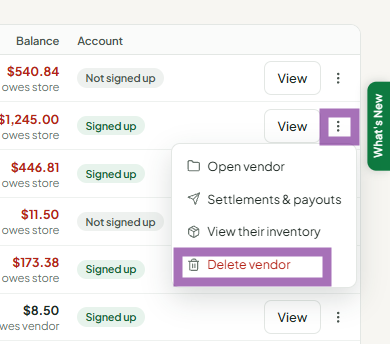
- Confirm.
What happens
- Their spaces become vacant.
- Their sales history stays in the ledger.
- They can no longer log in to your store for this vendor record.
If a booth is taken over by someone else
Create a new vendor for the new person. Don't reuse or merge the old vendor - the new person would see the previous vendor's sales and balance.
