
Open store settings from Settings > Overview (the Money tax & payments tile), go to the Financial tab, click Edit, set Store Commission (the % your store keeps from vendor sales) and your card rate settings, then click Save.
Who this is for: Store admins.
These steps use the New Experience. If your menu looks different, click Switch to New Experience at the top of the page.
Steps
- Go to Settings > Overview and click the Money tax & payments tile. The classic Preferences page opens on the Financial tab. Click Edit.
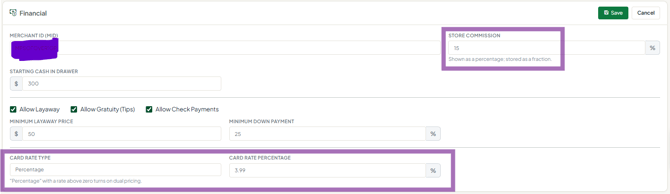
- Store Commission - the % kept from vendor sales, deducted when settlements are calculated. To give one vendor a different rate, open them from People > Vendors (View), go to the Settings tab and set Commission rate %.
- Card Rate Type - how card fees and card pricing work. The options are None, Percentage and Vendor Choice. Percentage with a rate above zero turns on dual pricing.
- Card Rate Percentage - the card percentage, used with Percentage and Vendor Choice. It's also used to work out card prices on tags.
- Click Save.
What prints on labels
- Percentage (dual pricing): labels print both prices - the card price and the cash price.
- Vendor Choice: labels print the credit price only for vendors who participate; other vendors' labels print the cash price.
- Neither: labels print the cash price.
Good to know
- Commission changes apply to new sales; past sales aren't recalculated.
- Vendors on Vendor Choice stores are opted in one by one on their Settings tab (Card price opt-in (Vendor Choice)). See What is Vendor Choice pricing and how do I turn it on?
- Starting dual pricing requires a signed processing addendum with Syncrostore.
