
If an item shows "not found" when scanned, the barcode doesn't match any active item in this store's inventory - usually because the item was deleted, was added in a different store, or its barcode/SKU wasn't saved the way the scanner reads it.
Who this is for: Cashier, Store admin, Vendor
These steps use the New Experience. If your menu looks different, click Switch to New Experience at the top of the page.
What to do at the register right now
- On Sales > Register, press Lookup Item and search by the description, SKU or item number printed on the tag.
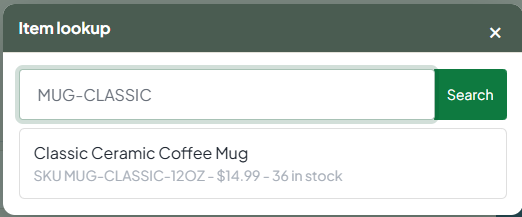
- If the item still can't be found, ring it up as a Manual Item using the Vendor ID printed on the tag and the tag price, so the vendor still gets credit.
- Let the vendor or store admin know so the item record can be fixed.
Common causes and fixes
- The item was deleted. Deleted items can't be scanned. The vendor needs to re-add the item (Inventory > Add Item) and print a new label. Deletes can't be undone.
- The item belongs to another store. In multi-store setups, inventory is added on each store's own web address (
<store>.mysyncrostore.com). An item added in Store A won't scan in Store B. If the item is set up at another of your locations that shares this store's account, the register opens a Not set up at this store window saying where it is; tap the item there to ring it as a manual item with the description and price filled in. If items were moved with the Inventory Transfer option, print their labels at the store that received them. - The barcode on the label is old or was made outside Syncrostore. Labels printed from Syncrostore since July 2026 encode an internal item ID (GlobalItemID), not the SKU. Older labels or labels from another system scan only if their code is saved in the item's SKU or UPC field.
- Variant items imported with UPCs. Variant UPCs aren't supported - each variant's barcode must be saved as its Variant SKU. When importing, map the UPC column to Variant SKU.
- The scanner isn't sending "Enter". If the code appears in the scan box but nothing is added until you click Add Product, the scanner needs its "carriage return/Enter suffix" setting turned on (scan the configuration barcode in the scanner's manual).
- SKU formatting. UPCs must be digits only. SKU matching at the register ignores upper and lower case, so "abc123" and "ABC123" match; extra spaces or a different character (for example O instead of 0) do not.
- The scan went into the wrong box. If the customer search box had focus, the scan is typed there instead. Click back into the scan box and scan again.
Troubleshooting
- One barcode shows two items. If two items share a code (often from imports or transfers), the register asks you to choose - compare description, item ID, price and vendor with the physical item.
- Scanning a new label into the Inventory search box finds nothing. Expected: the Inventory page search ("Search items by name, SKU, or description...") doesn't look up the GlobalItemID barcode. Search by name or SKU instead.
- Labels too dark to scan. Lower the print density on the label printer.
