
Go to Reports and, under Time & activity, choose Time Clock to see hours worked; switch to the Detail view and double-click a Clock In or Clock Out cell to correct a time, then click Update.
Who this is for: Store admins.
These steps use the New Experience. If your menu looks different, click Switch to New Experience at the top of the page.
Open the report
- Go to Reports.
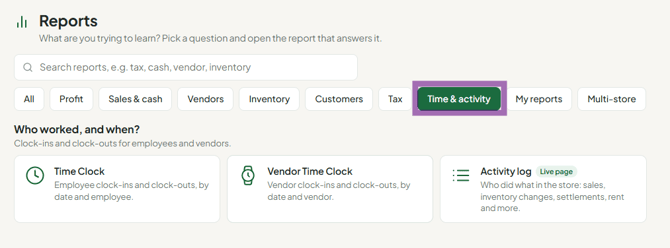
- Under Time & activity, choose Time Clock (employees) or Vendor Time Clock (vendors who clock in). You can also type "time" in the Search reports box.
- Set the Date Range at the top left to your pay period.
What you'll see
- Cards: Total Hours Worked, Total Active Shifts, Average Hours per Completed Shift.
- A Hours Worked by Day chart and a Currently Clocked In list.
- Two views near the bottom:
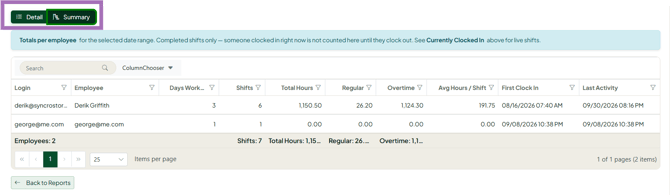
- Summary - one row per employee: login, name, days worked, completed shifts, active shifts, total hours, average hours per shift, first clock-in and last activity.
- Detail - one row per shift with Clock In, Clock Out, Status, Hours, Regular and Overtime.
Correct a clock-in or clock-out time
- Select the Detail view.
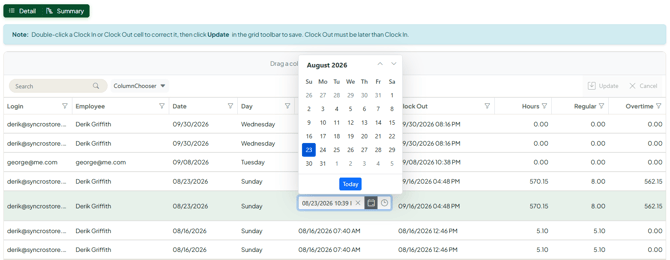
- Double-click the Clock In or Clock Out cell for the shift.
- Enter the correct date and time.
- Click Update in the grid toolbar to save (or Cancel).
Rules:
- Clock Out must be later than Clock In.
- Only completed shifts can be edited. A shift still in progress shows under Currently Clocked In and can't be edited until the person clocks out.
- Hours, Regular and Overtime recalculate after you save.
- The grid is the same on a phone, but double-clicking a cell is much easier on a computer.
Vendor Time Clock report
Works the same way but lists vendors (Vendor, Alias, Login). There's no Regular/Overtime split.
Troubleshooting
- Someone forgot to clock out: have them go to avatar > Settings > Time Clock and use Close that shift, or Clock out. Then correct the Clock Out time if needed.
- Someone forgot to clock in / need to add a missing shift: click Add Time Entry at the top of the report, pick the Employee, enter Clock In and (optionally) Clock Out, and click Save. Leave Clock Out blank if they're still at work. The Vendor Time Clock report has the same button.
- Need to delete duplicate or bogus entries: you can't delete entries yourself yet. Contact support with the Store name, employee and dates.
- Times are off by an hour: check your store time zone. Click your avatar - if the store time zone isn't set, you'll see a Set store time zone link. Otherwise check Settings > Store settings.
- Employee who is also a vendor has missing hours: check the Vendor Time Clock report - they may have clocked in as a vendor. Staff clock in from avatar > Settings > Time Clock (My time clock).
- Employee can't clock in: they may still be clocked in from a previous day. Check Currently Clocked In.
- Searching doesn't find someone: filter the Employee or Vendor column instead of using the global search box.
- Reports gives an access error: the Reports page is for Administrators.
