
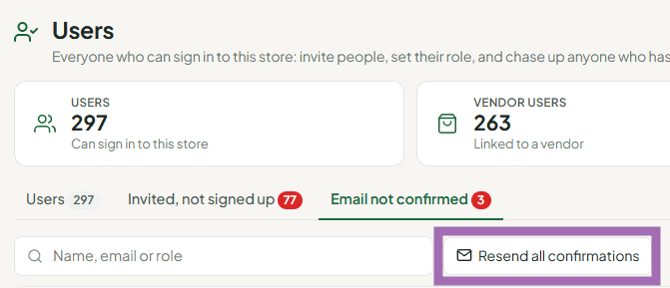
Go to People > Users and open the Invited, not signed up tab to resend an account invite, or the Email not confirmed tab to resend a confirmation email.
Who this is for: Store admins. (Vendors and staff: ask your store admin to do this - Syncrostore support can't invite people to your store.)
These steps use the New Experience. If your menu looks different, click Switch to New Experience at the top of the page.
New users need two things before they can log in: they create their account from the invite email, then confirm their email from the confirmation email. Until both are done, login shows errors such as "account not found."
Resend an account invite
- Go to People > Users.
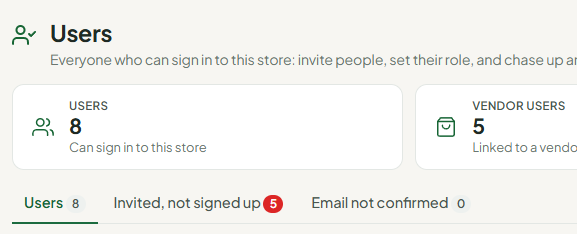
- Open the Invited, not signed up tab. These people were added but haven't created a login.
- Find the person and click Resend invite on their row, or click Resend all invitations to send to everyone listed.
Vendor was never sent an invite: they won’t be on the Invited, not signed up tab. Open the vendor from People > Vendors, go to the Settings tab, tick Also email an invitation to create their account and click Save.
Resend a confirmation email
- On People > Users, open the Email not confirmed tab. These people created a login but haven't confirmed their email.
- Resend to the person from their row, or click Resend all confirmations to send to everyone listed.
If the link has expired or keeps failing
Confirmation links can expire. For someone on the Email not confirmed tab, you can confirm them yourself:
- On People > Users, click View on the person's row.
- Tick Email confirmed and click Save.
- They can now log in at your store's address.
This only works for people who have already created their login. Someone on the Invited, not signed up tab still has to create their account from the invite.
Tell the person
- Check spam, junk and promotions folders.
- Log out of any other Syncrostore account (including other stores) before clicking the link.
- Log in at your store's own address,
<store>.mysyncrostore.com, over HTTPS - not a generic Syncrostore page. - Each store adds people on its own: being set up at one store doesn’t give access to another. Someone who already has a Syncrostore login doesn’t need to register again. Once the new store adds them, they sign in with their usual email and password.
Troubleshooting
- Wrong email address on the invite: on People > Users, click Change email or access to open the Change Email / Access tool (see Changing a Vendor's Email, Login or Access), then resend.
- "Already a member" but the vendor sees "This login is not linked to a vendor at this store": have them clear their browser cache and log in again; if it continues, contact support.
- Link won't open: resend it and have them copy the link into a browser where they aren't logged in to Syncrostore.
