
Copy your Shopify products into the Syncrostore import template, one row per variant, with all variants of a product sharing the same Group Key (Shopify's Handle). Save it as CSV and upload it in the Import Wizard. Uploading the raw Shopify export doesn't work.
Who this is for: Vendor, Store staff
These steps use the New Experience. If your menu looks different, click Switch to New Vendor Experience (vendors) or Switch to New Experience (Beta) (store staff) at the top of the page.
The one thing to understand
Each variant is its own row. Rows for the same product share a Group Key, and each row has its own Variant Price.
| Group Key | Variant SKU | Variant Price | Variant Quantity | Option1 Name | Option1 Value | Option2 Name | Option2 Value |
|---|---|---|---|---|---|---|---|
| TSHIRT-PRO-001 | TSHIRT-PRO-001-RED-S | 24.99 | 12 | Color | Red | Size | Small |
| TSHIRT-PRO-001 | TSHIRT-PRO-001-RED-M | 24.99 | 18 | Color | Red | Size | Medium |
| TSHIRT-PRO-001 | TSHIRT-PRO-001-BLU-S | 24.99 | 9 | Color | Blue | Size | Small |
| TSHIRT-PRO-001 | TSHIRT-PRO-001-BLU-M | 26.99 | 14 | Color | Blue | Size | Medium |
Product name, brand and category only need to be on the first row of each group.
Why not the raw Shopify export?
Shopify writes option names ("Color", "Size") only on a product's first line, and its export has 100+ columns with no match in Syncrostore. The variants end up in the wrong place or the import fails.
Steps
- Vendors: on Inventory, click Import. Store staff: click Imports > Inventory. The classic Import Wizard opens; click Download import template.
- Copy from Shopify into the template:
| Shopify column | Template column |
|---|---|
| Handle | Group Key |
| Title | Description (Title) |
| Variant Price | Variant Price |
| Variant Inventory Qty | Variant Quantity |
| Option1 Value | Option1 Value (and type the label, e.g. "Color", in Option1 Name on every row) |
| Option2 Value | Option2 Value (type "Size" in Option2 Name on every row) |
| Variant SKU / Variant Barcode | Variant SKU (each must be unique; use the barcode here if you want existing Shopify barcodes to scan) |
- Save as CSV.
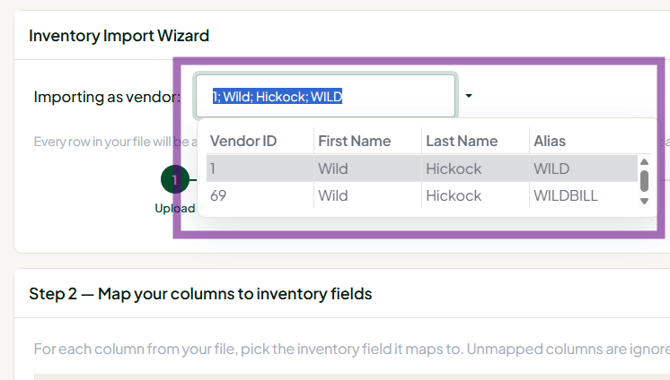
- In the Import Wizard, select your vendor in the dropdown, then upload the file.
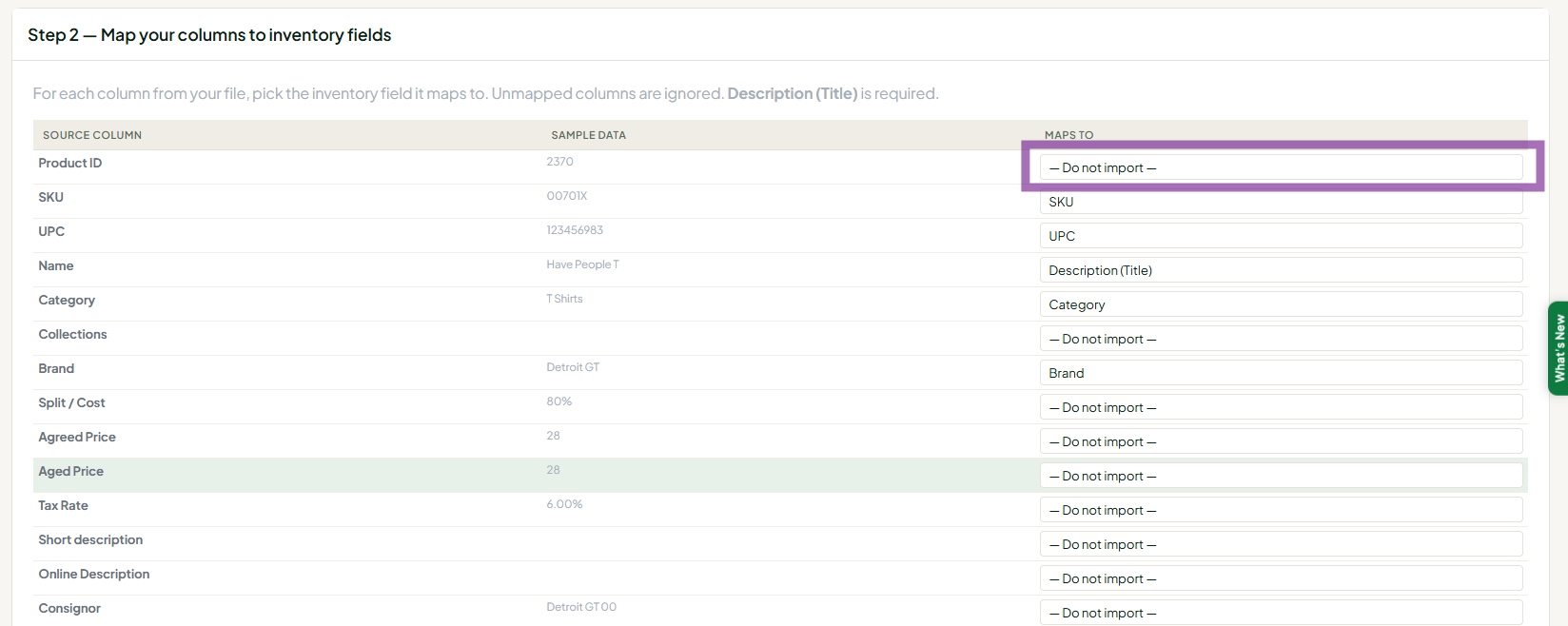
- Map columns (the template maps automatically), Preview & edit, choose duplicate handling (match on SKU or UPC, then Skip or Update) and click Run Import.
Quick checklist
- One row per variant; same Group Key for every row of one product, and different Group Keys for different products.
- Option Name filled on every row.
- Every variant has a unique Variant SKU, a price and a quantity (numbers only).
- There's no fixed limit on variants per Group Key, but in the item form each attribute is limited to 100 values, so keep each option list to 100 or fewer.
- Saved as CSV.
Troubleshooting
- SS- error code / "Something went wrong": usually a raw Shopify file, text in a number column, or Excel formatting. Use the template and save as CSV.
- "Must select a vendor before importing": pick your vendor in the dropdown on the import page.
- Only the first product imported: several products share one Group Key.
- Only the first variant's barcode scans: put each variant's barcode in Variant SKU (variant UPCs aren't supported).
- Will Syncrostore keep Shopify in sync? No. There's no Shopify integration, so you'll need to update Shopify stock yourself.
