
When a vendor ends a settlement with a negative balance (rent and fees were more than their sales), go to Money > Invoicing, preview the vendors who owe, and click Send invoices. Stores on SyncroPay/SyncroACH (Moov) send SyncroPay/SyncroACH invoices inside Syncrostore. Stores still on Stripe use Stripe invoices, which need the webhook setup below.
Who this is for: Store admin / store owner
These steps use the New Experience. If your menu looks different, click Switch to New Experience (Beta) at the top of the page.
How invoices work (both systems)
- Invoicing needs ACH (SyncroPay/SyncroACH or Stripe) to be set up for your store.
- An invoice is a snapshot of the vendor's balance at the moment it is sent. Sales after that date go toward the vendor's next settlement. The vendor's running balance can therefore differ from the invoice amount.
- Vendors who turned on automatic payments are auto-debited. If an auto-debit can't be made, the system emails the vendor an invoice instead.
- Syncrostore does not turn automatic payments on for vendors. Each vendor does it themselves under avatar > Settings > Payments & Banking, and can turn it off there.
- Stripe stores only: Stripe invoice payment terms are fixed at 30 days and can't be changed.
- The rent period on an invoice run (for example, September vs October) doesn't change the amounts.
- If a vendor has balances at several of your stores under the same login email, positive and negative balances are netted at settlement. Only the remaining negative amount is invoiced.
SyncroPay/SyncroACH invoices
- Finish SyncroPay/SyncroACH onboarding (see "How do I set up ACH direct deposit to pay vendors? (store owners)").
- Vendors who want automatic payments must link and verify a bank in SyncroPay/SyncroACH, then set an Auto-invoicing account (tick the consent box and click Save Auto-Invoicing) under avatar > Settings > Payments & Banking. Autopay set up in Stripe does not carry over. Every vendor must turn it on again.
- Run settlements, then go to Money > Invoicing.
- Optional: open the Who owes sub-tab to see who has a negative balance at the end of a date and who Can invoice today. Tick vendors and click Invoice selected to invoice just them.
- Open the Send invoices sub-tab. Choose the Rent period (month and year) and Balances as of, then click Preview vendors to invoice.
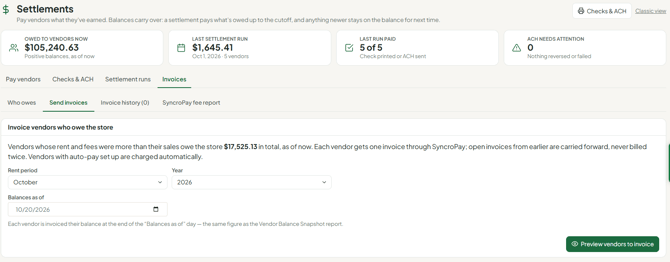
- Check the list and click Send invoices.
- To see or void sent invoices, open the Invoice history sub-tab (Void, Refresh). SyncroPay/SyncroACH stores also have a SyncroPay fee report sub-tab.
- You can also invoice one vendor from their page: People > Vendors > View, then More ▾ > Invoice them (shown when they owe the store).
- Vendors see and pay their invoices under Money > Payouts & invoices, on the Invoices tab (Pay).
Old Stripe invoices can't be paid with a bank account linked in SyncroPay/SyncroACH; the two systems are separate. Collect old Stripe invoices through Stripe's payment link, or void them and collect another way.
If your store still uses Stripe: invoicing webhook setup
Only stores still invoicing through Stripe need this. Without the webhook, Syncrostore still checks Stripe every night for paid invoices and credits the vendor. The webhook makes balances update right away.
- Connect your Stripe account for ACH first.
- In Syncrostore, go to Settings > Store settings, open the Settlements tab, scroll to Payment Confirmation Webhook, and copy the Webhook URL. In your Stripe Dashboard, open Webhooks and click Add Destination.
- Select your account, choose All Events, open Invoices, check Select all Invoice events, and click Continue.
- Select Webhook Endpoint and click Continue.
- Name the destination (for example, " Invoices") and paste the Webhook URL into Endpoint URL. Click Continue.
- On the endpoint page, find Signing secret and click the eye icon to reveal it. Never share this value.
- Back in Syncrostore (Settings > Store settings > Settlements), paste it into Webhook Secret and click Save Webhook Secret.
For Stripe stores, vendors turn on automatic payments under avatar > Settings > Payments & Banking, in Invoice Auto-Pay ("Automatically pay rent invoices").
Troubleshooting
- A vendor paid a Stripe invoice but the payment isn't on their balance. Stripe sometimes fails to send the webhook. A nightly job now pulls missed invoices and credits the vendor. If it's still missing the next day, post a credit on Money > Rent & fees > Credits & fees and contact support.
- An autopay vendor got an emailed invoice instead. Their saved payment method couldn't be charged, so the system fell back to an invoice.
- A vendor isn't on the invoice preview. Invoices always bill the vendor's current negative balance. A vendor who owed only on a past date can't be invoiced now.
- An old "Invoice Paid" link won't open. Stripe owns those links, and they expire. View the payment in your Stripe Dashboard.
- A paid invoice shows on the vendor's ledger as a positive amount. That's correct. A paid invoice is a credit. Deductions show in parentheses.
- Vendors received Stripe "confirm your direct debit authorization" emails. Nothing in Syncrostore triggers these. Vendors should contact Stripe.
