
You don't have to set gift cards up in advance - scanning an unused card number at the register creates it automatically - but you can pre-create cards on Sales > Gift Cards if you want a fixed preset amount.
Who this is for: Store admin, Cashier
These steps use the New Experience. If your menu looks different, click Switch to New Experience at the top of the page.
Getting physical gift cards
- Syncrostore no longer sells custom gift cards. Order them from any card printer (for example SilkCards).
- Each card needs a unique barcode and number of up to 20 characters on the back. Syncrostore tracks the balance once the number is scanned at a sale.
- There is no digital/e-mailed gift card. If you don't use physical cards, you can create a card with any unique number (for example the recipient's phone number) and share that number with the customer.
Option 1: Create the card at the register (most common)
Just sell it on Sales > Register - see How do I sell or add money to a gift card?. A new number shows "New card - it will be created for the amount entered."
Option 2: Pre-create a card on the Gift Cards page
- Go to Sales > Gift Cards and press New gift card.
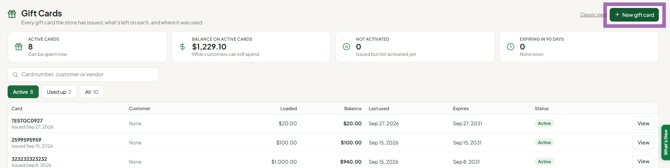
- Enter:
- Card number - scan the barcode or type the number.
- Amount to load - required. Enter an amount to make it a preset card (the amount is then locked at the register). Enter 0 to stock a blank card: when it's scanned at the register, the cashier is asked for the amount to load. A blank box is refused with "Initial Balance is required."
- Expires - at least 5 years from issue (federal minimum). Your state may require longer.
- Vendor (optional) and Customer (optional).
- Save the card.
A new card is not active. It shows under the Not activated chip and becomes usable only after it is sold and paid for at the register.
Troubleshooting
- "That gift card number belongs to another store." The card was issued at a different store, so it can't be sold or reloaded here. If your stores are connected to share gift cards, customers can still pay with it at your register.
- Need to change a preset amount: a manager changes it on Sales > Gift Cards (press View on the card) before the card is sold.
- Number too long: new card numbers can be at most 20 characters.
- Gift Cards isn't in the Sales menu: gift cards need the Retail Essentials plan or higher.
