
Overview
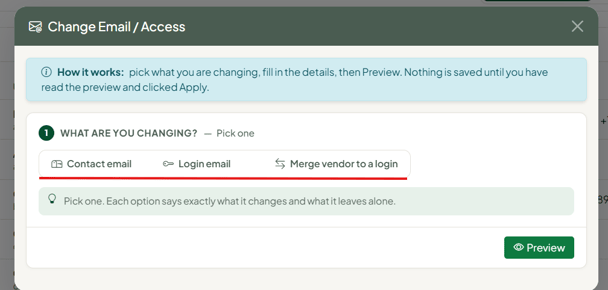
The Change Email / Access tool on the Users page handles the three email and login changes vendors ask for most. Each one does something different, so it is worth picking the right one:
- Contact email changes where a vendor's statements, notices and invitations are sent. It does not change how anyone signs in.
- Login email changes the email address a person types to sign in. They keep their password and everything they can see. Their old email stops working for sign-in.
- Merge vendor to a login moves a vendor to a different person's login, so they see it next to anything they already have.
Nothing is saved until you have read a preview of exactly what will change and confirmed it.
Before You Start
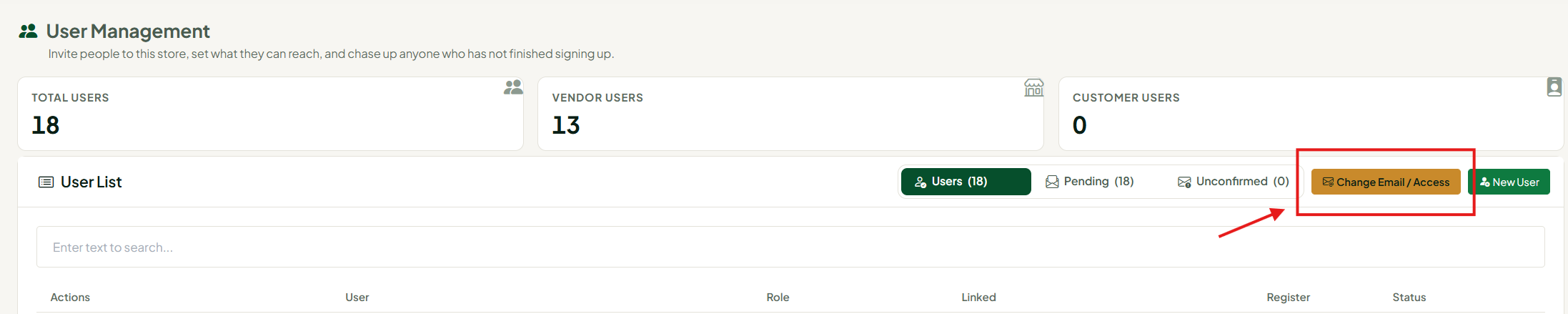
- Administrator role required. The Users page and the Change Email / Access button are only available to Administrators.
- Know which change you need. Use the table below. If you are not sure, start with Contact email — it is the only option that never affects how anyone signs in.
- For Merge: the person receiving the vendor must already be a user of your store and must have finished signing up. If they have not, invite them from the Users page first and wait for them to create their account.
Which Option Do I Need?
| The vendor says… | Use |
|---|---|
| "Please send my statements to my new email." (They still sign in the same way.) | Contact email |
| "I want to sign in with my new email." or "I can't get into my old email anymore." | Login email |
| "I rent a second booth and want both booths under one login." | Merge vendor to a login — merge the second booth into their existing login |
| "My partner and I share a booth and both need to see it." | Merge vendor to a login — with Remove access unticked, so both people keep it |
What each option changes
| Contact email | Login email | Merge vendor to a login | |
|---|---|---|---|
| Where statements and notices go | Changes | Follows the new email if statements went to the old one | Changes (to the receiving login, unless you enter a different address) |
| The email used to sign in | No change | Changes | No change |
| Password | No change | No change | No change |
| Who can see the vendor | No change | No change (same person, new email) | Changes |
| Sales, balances, rent and checks | No change | No change | No change — they stay with the vendor number |
Opening the Tool
- Go to Admin → Users.
- Click the orange Change Email / Access button at the top of the User List.

You can also open it from a vendor's details page: click Change email under the vendor's email. This opens the tool with Contact email selected and that vendor already picked.
The tool walks you through numbered steps. Step 1 is always What are you changing? — pick one of the three options, and a short description of exactly what it changes appears underneath.
Changing a Contact Email
Use this when a vendor wants their statements, notices and invitations sent to a different email. How they sign in stays exactly the same.
- Under What are you changing?, click Contact email.
- Under Vendor, start typing to search. You can search by vendor number, alias, name, contact email, or the email of anyone who signs in to that vendor. Click Select next to the right vendor.
- If more than one person signs in to that vendor, choose whose contact address is changing. The other person is left alone.
- Under New contact email, enter the new address.
- Leave Email the old and the new contact address about this ticked if you want the vendor notified (recommended).
- Click Preview and read every line of What will change.
- Tick the confirmation box, then click Apply change.
Changing a Login Email
Use this when a person needs to sign in with a different email. They keep the same password and see exactly the same vendors as before. Their old email stops working for sign-in as soon as you apply the change.
- Under What are you changing?, click Login email.
- Under Login, search by email, name, vendor number or alias, and click Select. Only people who have finished signing up are listed.
- Enter the New login email, then type it again in Type the new login email again. The two must match — a typo here would lock them out.
- Click Preview. The preview lists everything this person can see today. All of it moves to the new email.
- Tick the confirmation box, then click Apply change.
What happens next:
- An email is sent to both the old and the new address. This always happens for a login change and cannot be turned off.
- If they are signed in somewhere, they will be signed out within 30 minutes. They sign back in with the new email and their existing password.
- If they had not confirmed their email yet, their old confirmation link stops working. Send a new one from the Unconfirmed tab on the Users page with Resend Confirmation.
Note: You cannot change your own login email with this tool. Ask another Administrator, or contact Syncrostore support.
Merging a Vendor to a Login
Use this to move a vendor onto another person's login — for example, when one person rents two booths and wants to see both with one sign-in. The vendor keeps its own number, sales, balance, rent and checks. Nothing is combined; the receiving person just sees it next to what they already have.
- Under What are you changing?, click Merge vendor to a login.
- Under Vendor, search for and select the vendor being merged.
- If more than one person signs in to that vendor, choose Who has it now?
- Under Receiving login, search for and select the person who should get the vendor.
- Under Contact & access:
- New contact email fills in with the receiving login's email. Change it only if the vendor wants statements sent somewhere else.
- Remove [person]'s access to this vendor is ticked by default. Leave it ticked to hand the vendor over. Untick it if both people should keep access (for example, partners sharing a booth).
- Also delete invites on this vendor that were never accepted is optional. Use it to clean up old invitations nobody used.
- Leave Email the login receiving the vendor, and the one losing it ticked to notify both people.
- Click Preview. Check the list of vendors the receiving person already has, and the Who signs in to vendor # table — anyone marked loses access will no longer see this vendor.
- Tick the confirmation box, then click Apply change.
Important: Removing access and deleting unused invites are permanent. If you remove the only thing someone had in your store, they will no longer be able to sign in to your store at all — the preview tells you when that is the case.
Taking over a booth? If a booth is being taken over by a different person or business, create a new vendor for them instead of merging. A merge gives the receiving person the vendor's full sales history and balance.
Reading the Preview
Every change shows a preview first. Nothing has been saved at this point.
- Warning (red) marks something permanent or something that stops working, such as removed access or an old login email.
- Check (yellow) marks something worth a second look.
- Unchanged (green) confirms what is not affected, such as passwords and money.
The Apply change button only appears after a preview, and only works once you tick the confirmation box. If you edit anything after previewing, the preview is cleared and you will need to click Preview again. If someone else changes the same vendor or login while you are looking at the preview, you will see "Something changed since you previewed" and nothing is saved — just preview again.
Emails Sent to Vendors
| Option | Who is emailed | Can I turn it off? |
|---|---|---|
| Contact email | The old and the new contact address | Yes (ticked by default) |
| Login email | The old and the new login email | No — always sent |
| Merge vendor to a login | The receiving login, and the previous owner if their access was removed | Yes (ticked by default) |
If an email cannot be sent, the change is still saved and you will see a message asking you to let the vendor know yourself.
When a Change Is Blocked
Some login changes can't be made from your store, because the same login is also used at other Syncrostore stores. Changing it in only one store would leave the person with two different logins. When this happens you will see a red Blocked card instead of the Apply button:
- "This login is also used at [number] other Syncrostore stores" — contact Syncrostore support and we will change it everywhere at once.
- "The new address already signs in at [number] other Syncrostore stores" — check the new email is typed correctly. If it really is theirs, contact Syncrostore support.
Other messages you may see
| Message | What to do |
|---|---|
| "… is someone else's sign-in (or a pending invite) … it would let them see the vendor." | That email belongs to a different person in your store. Use a different contact email. If that person really should get the vendor, use Merge vendor to a login instead. |
| "… can see this vendor only through its current contact address, so changing it would lock them out." | First give that person proper access: run Merge vendor to a login with them as the receiving login and Remove access unticked. Then change the contact email. |
| "… is not a user of this store yet" or "… has no sign-in in this store's database." | Invite them from the Users page, wait until they finish signing up, then try again. |
| "… already has its own sign-in here." | That email already has its own login. Use Merge vendor to a login to move the vendor onto it instead. |
| "You can't change your own sign-in here." | Ask another Administrator, or contact Syncrostore support. |
| "That is already this vendor's contact address - nothing to change." | No action needed. |
| "… does not look like a valid email address." | Check the email for typos, spaces or extra characters. |
Good to Know
- People with more than one vendor show as Vendor #1234 +1 more in the User List. When you open that person, the Vendor box changes their first vendor only — use Change Email / Access to move the others.
- Deleting a user who has several vendors removes their access to all of them. The Delete confirmation tells you how many.
- Every change is recorded in Admin → Ledger with who made it and when, as Vendor Contact Changed, Login Email Changed or Vendor Login Merged.
Undoing a Change
- Contact email: run Contact email again with the previous address.
- Login email: run Login email again on the new address and change it back to the old one. Their password is unaffected.
- Merge: merge the vendor back to the original login. If you removed someone's access, settings saved on it (such as a PIN) are not brought back automatically — open that user on the Users page and re-enter them.
Common Mistakes to Avoid
Using Login email when the vendor only wants statements elsewhere. A login change makes their old email stop working for sign-in. If they only want paperwork sent somewhere new, use Contact email.
Merging when a booth changes hands. The new owner would see the previous owner's full sales history and balance. Create a new vendor for them instead.
Leaving "Remove access" ticked for a shared booth. If two people should both keep seeing the vendor, untick it before you preview.
Applying without reading the preview. Red Warning lines are permanent. Read every line before you tick the confirmation box.
