
Scan an item's barcode into the scan box on Sales > Register (or type its item ID, SKU or UPC and press Enter); to search by description, use Lookup Item.
Who this is for: Cashier
These steps use the New Experience. If your menu looks different, click Switch to New Experience at the top of the page.
The scan box
- Go to Sales > Register. Scan into the box at the top of the sale ("Enter item ID, SKU or UPC..."), or type a code and press Enter.

- The box clears and the cursor stays put so you can scan the next item. Add Product does the same as pressing Enter (it's there for touchscreens).
The scan box accepts: the item's SKU, UPC, numeric item ID, a variant's own SKU (adds that variant directly), a variant code like V4471, and the Syncrostore barcode printed on labels. It does not accept descriptions - use Lookup Item. You can add out-of-stock items.
Lookup Item
- Press Lookup Item. The "Item lookup" window opens.
- Type in "Search description / SKU / UPC / item #" and press Enter or Search.
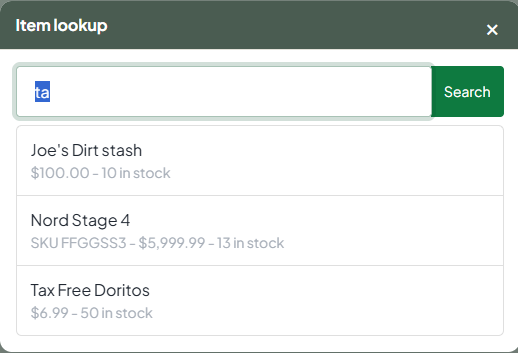
- Click a result to add it.
Good to know:
- Description search matches every word you type, in any order ("blue mug" finds "Ceramic Mug, Blue").
- You get the first 10 matches, sorted by description. No paging - search more specifically if needed.
- Out-of-stock items still appear; check the stock number.
- "No matches." means nothing was found.
After an item is added, it appears in the cart, the totals update, and "Added to cart" shows at the top.
Troubleshooting
- The code appears in the box but the item isn't added until you click Add Product: the scanner isn't sending "Enter" after each scan. Scan the "add carriage return / Enter suffix" setup barcode from your scanner's manual.
- Scans end up in the customer search box: click back into the scan box. The cursor returns there after most actions, but not if you clicked into another field.
- A window asks you to choose between two different items: two items share the same barcode (often from imports or store transfers). Compare description, item ID, price and vendor with the item in hand and pick the right one.
- "Not found": see Why does an item say 'not found' when I scan it at the register?
- An item you looked up earlier appears in the next sale: clicking a lookup result adds it to the cart. Delete it, and clear or finish sales before starting a new one.
