
iDPRT SP320 label printer
Same small-printer setup as the SP310, with a faster print speed and sturdier internal build. Good middle-ground pick if you print a lot of small tags every day.
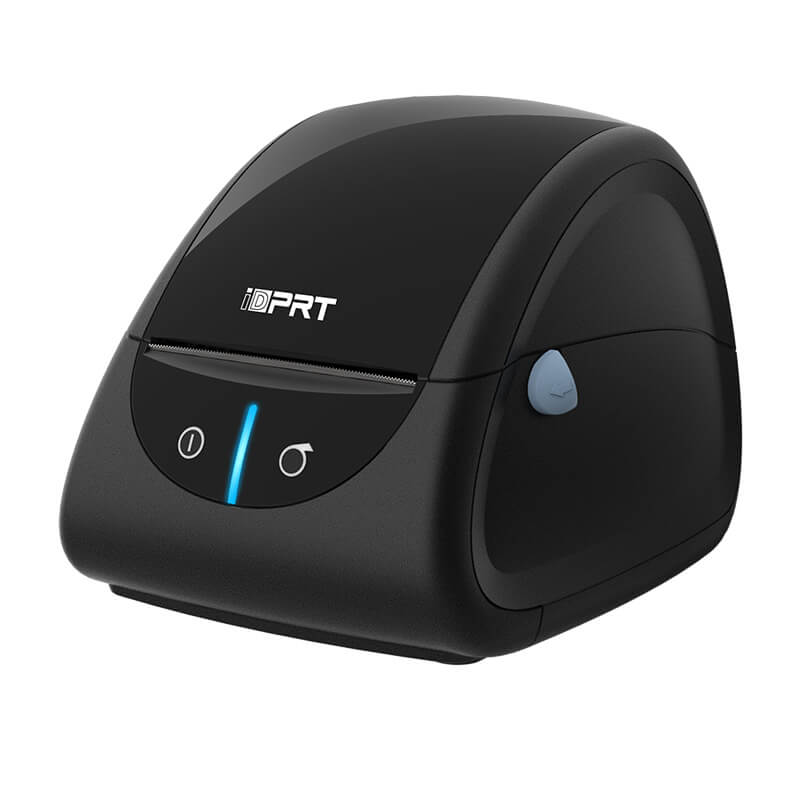
Why we picked the iDPRT SP320
We're Syncrostore — a cloud POS built specifically for multi-vendor retail. Antique malls, consignment shops, thrift stores, hobby card shops. Stores where one owner manages dozens of vendors selling under one roof. We didn't inherit our software from a single-owner store tool. We built it from scratch for this niche.
Most POS companies let you connect any printer and figure it out yourself. We picked six. We've torn them down, set them up dozens of times, and know them cold. The SP320 is the high-volume small-format pick — same form factor as the SP310 with a faster print engine and sturdier internal build. When you call us about it, our team already knows the answer.
Why iDPRT and not Dymo? We tested Dymo's LabelWriter 5-series. Beautiful printer, but Dymo locks their newer rolls to genuine Dymo-brand labels via an RFID chip in the roll core. Roughly 3x the per-label cost. For a vendor printing hundreds of tags a week, that math doesn't work. iDPRT takes any direct thermal label.
— Drew, founder
Is this the right printer for you?
Pick this one if any of these describe what you need.
You print a lot of small tags
The SP320 is faster than the SP310 (152 mm/s vs 127 mm/s). If you're printing hundreds of tags a day, that speed difference adds up.
You want it to last
Same small-printer footprint as the SP310 with a sturdier internal build. The pick if it's going to sit on a counter for years.
You don't need 4-inch labels
Same 1–3 inch label range as the SP310. If you need 4-inch shipping labels or large hang tags, look at the SP410 or SP420 family.
Vendors print at the store
USB-only, same as the SP310. For at-home printing, pick a BT model.
What's in the box
When you open the package, you should find these items. If anything is missing, contact the seller before continuing.
Inside the box:
- The SP320 printer
- USB-A to USB-B cable (about 5 feet long)
- Power adapter and cable
- A small starter roll of labels (so you can test right away)
- Quick start guide from iDPRT (in several languages)
- Driver download card with a QR code — you can ignore that, use the link below instead
Before you start
Here's what you'll need. The whole setup usually takes about 10 minutes.
Gather this stuff first:
- The iDPRT SP320 printer plus the USB cable that came in the box
- A computer running Windows 10/11 or macOS 11 or newer
- A roll of direct thermal labels (the starter roll works fine, or any thermal label that fits)
- Your Syncrostore login (the one you use to manage your vendor account)
- About 10 minutes of uninterrupted time near the desk where you'll keep the printer
Same setup video works for the SP310 — these two are sister printers.
Download drivers
A driver is the small piece of software that lets your computer talk to the printer. Install it before you plug in the printer.
Windows driver
Works with Windows 10 and Windows 11. Download the file, double-click to run, follow the prompts, then plug in the printer when it asks.
Download for Windows →Mac driver
Works with macOS 11 Big Sur and newer, including Apple Silicon Macs. You may need to allow the installer in System Settings → Privacy & Security.
Download for Mac →Loading labels
This is where most setup problems start. Take your time.
- Open the printer top
Press the green latch on the side and lift the top cover up. The label roll holder is inside.
- Check which side is shiny
Direct thermal labels only print on one side — the shiny, smooth side. Run your fingernail across both sides of a label. The smoother, shinier side is the one that needs to face UP when it comes out of the printer.Why this matters: If you load the roll upside down, your labels come out completely blank. This is the #1 reason people call us.
- Place the roll on the holder
Set the label roll on the silver spindle so the labels feed off the BOTTOM of the roll (toward the front of the printer), with the shiny side facing UP as it comes out.
- Feed the leading edge through the guides
Pull about 6 inches of label off the roll. Feed the leading edge through the two black plastic label guides, then under the print head, and out the front slot.
- Close the top cover
Press the top cover down firmly until you hear it click on both sides.
- Calibrate (one button press)
With the printer powered on, press and hold the FEED button for about 3 seconds and let go. The printer will spit out a few labels as it figures out the size.Tip: Calibration only needs to happen once per new roll. If you switch to a different label size later, calibrate again.
Set it up in Syncrostore
Driver installed, labels loaded — now connect to Syncrostore.
- Install QZ Tray
QZ Tray is a small free program that lets Syncrostore send labels to your printer. Download it from your Syncrostore account under Settings → Printing. Run the installer and let it open at startup.What's QZ Tray? Think of it as a tiny translator between Syncrostore (which lives in your web browser) and your physical printer. It runs quietly in the background.
- Connect the printer with USB
Plug the SP320 into your computer with the USB cable that came in the box. Windows or Mac will pick it up automatically since you already installed the driver.Tip: Plug the USB cable directly into your computer, not into a USB hub or extension. Hubs can cause connection problems with printers.
- Open Syncrostore in your browser
Log in to Syncrostore and go to Settings → Printing → Add Printer.
- Pick your model
Choose "iDPRT SP320" from the dropdown. Syncrostore loads the right label size and print density automatically — you don't have to figure that out.Don't see your model? Refresh the page. If it still isn't there, QZ Tray probably isn't running. Look for the QZ icon in your system tray (bottom right on Windows, top right on Mac).
- Print a test label
Hit "Print Test." If you see a clean barcode, you're done — go print some real labels. If something looks off, scroll down to the common issues section.
Cleaning the print head
Do this every 2-3 months, or right away if labels start coming out faint or streaky.
What you'll need
A 70%+ isopropyl alcohol wipe (the individually-wrapped packets), or a cotton swab dipped in isopropyl alcohol. Don't use water, household cleaner, or anything abrasive.
How to do it
Turn off the printer. Open the top cover. The print head is the dark strip across the top of the label path. Gently wipe it side to side a few times with the alcohol wipe. Let it air-dry for 2 minutes before closing the cover and turning the printer back on.
What labels to buy
The iDPRT SP320 works with any direct thermal label that fits — you don't have to buy iDPRT-brand labels.
Match these specs
You want labels described as "direct thermal" (NOT thermal transfer, NOT inkjet). For shipping labels: 4" x 6". For hang tags: typically 2.25" x 1.25" or similar. The roll core should be 1 inch or 1.5 inches.
Where to buy
Amazon has plenty of options — search "direct thermal labels 4x6 fanfold" or "direct thermal hang tag labels." Brands like Polono, MUNBYN, and Rollo make compatible labels at fair prices. Avoid anything labeled "thermal transfer."
Common issues
Most problems are one of these. Try the fix before opening a support ticket.
The label roll is loaded upside down. Direct thermal labels only print on the shiny side. Open the printer, flip the roll so the shiny side faces up as it feeds out, and close the lid.
The auto-detect sensor needs to learn the label size. With the printer on, hold the FEED button for 3 seconds. It will measure the next few labels and recalibrate.
The label size in Syncrostore doesn't match the labels you loaded. Go to Settings → Printing, click your printer, and confirm the label size matches what's on the roll's packaging.
QZ Tray isn't running. Look for the QZ icon in your system tray (Windows) or menu bar (Mac). If you don't see it, open QZ Tray from your Applications/Programs folder. Still nothing? Reboot the computer.
Print head needs a clean (see the cleaning section above). If streaks remain after cleaning, the label roll is old or stored in heat/sunlight — try a fresh roll.
Two common causes: the print head needs cleaning, or your labels are touching something hot/oily after they come out. Make sure nothing is rubbing against the labels as they print.
Check that the power adapter is plugged into the wall AND the printer. The green light should come on. If not, the power adapter may be bad — contact iDPRT or the seller for a replacement.
Calibration drifted. Hold the FEED button for 3 seconds with the printer on to recalibrate. Usually happens after switching label rolls.
Either the label size in Syncrostore is wrong, or the printer needs to recalibrate. Confirm size first, then hold FEED for 3 seconds.
Driver isn't installed, or the USB cable is in a hub instead of directly into the computer. Try a different USB port (on the computer, not a hub), and reinstall the driver if needed.
Windows or Mac updated overnight and reset something. Restart the computer, then check that QZ Tray is running. Still not working? Unplug the printer for 30 seconds and plug it back in.
Glossary
Terms that come up a lot when working with thermal printers.
- Direct thermal
- Labels that turn black when heated. The printer's print head heats spots to draw on the label — no ink, no ribbon. These labels fade in heat or sunlight over time, which is normal.
- QZ Tray
- A small free app that lets your web browser send print jobs to your printer. Syncrostore needs QZ Tray running to print labels.
- Calibration
- Teaching the printer the size of your labels. The sensor measures the gap between labels so it knows where one ends and the next begins.
- Print head
- The thin dark strip inside the printer that heats up to print on labels. It needs to stay clean to print well.
- USB-B
- The square-ish USB connector that plugs into the back of the printer. The other end (rectangular USB-A) plugs into your computer.
- Fanfold
- Labels that come folded back and forth instead of on a roll. Some people prefer fanfold because the stack sits flat in a box behind the printer.
Buy the printer
Both links go to the same printer. Buy from whichever you prefer.
iDPRT direct
From the manufacturer. Worth a look if you need multiple units or want bulk pricing.
View on iDPRT →Have a different printer?
Syncrostore works with most label printers, but we only offer full setup support for the six iDPRT models on this site. For other printers, our general printer setup guide has the basics — but the printers above are the only ones we can walk you through end-to-end.
