
General printer setup guide
Syncrostore can print to most label printers on the market. This guide covers how Syncrostore prints, what your printer needs to do on its end, and the settings to get right. It's the starting point for any printer that isn't one of our six fully-supported iDPRT models.
For those six models, we have full step-by-step setup guides — and our team knows them cold when you call. For everything else, this page is what we can offer.
Read this first — what Syncrostore actually does
Before you spend time setting up a new printer, know what Syncrostore is responsible for and what it isn't.
Syncrostore generates a label as a PDF, exactly the size and layout you picked. That's our part. Sending that PDF to the printer, scaling it, lining it up on the physical sticker — that's your printer, your driver, and your operating system.
If the label looks right in the Syncrostore preview but prints wrong, the issue is downstream. Driver, settings, label size, alignment. Not Syncrostore.
The fastest way to figure out where a problem is coming from is to compare the Syncrostore PDF to what comes out of the printer. We wrote a separate article on this:
Diagnosing label printing issues →
Pick a printing workflow
Syncrostore supports two ways to print labels. Either one works with most printers — pick the one that fits how your store runs.
Standard PDF printing (recommended for most users).
Syncrostore generates a PDF, and you print it like you'd print anything else — through your browser, Adobe Acrobat, Preview on a Mac, or your printer's manufacturer software. No extra installs, no setup. The most compatible workflow and the easiest to troubleshoot. Many vendors run their entire store on this workflow daily.
Integrated printing with QZ Tray.
QZ Tray is a free background app that lets Syncrostore send labels straight to your printer — no browser print dialog, no scaling decisions, faster end-to-end. Worth setting up if you have a dedicated POS workstation or print in volume. QZ Tray works with most label printers, including Dymo, Zebra, iDPRT, and other Windows or macOS compatible models.
Drivers and software
Every label printer needs a driver — the small piece of software that lets your computer talk to the printer. Without it, nothing you do in Syncrostore matters.
Always download drivers from the manufacturer's website. Skip third-party "driver finder" sites — they're a common malware vector. Common sources: Dymo (dymo.com/support), Zebra (zebra.com/support-downloads), iDPRT (idprt.com/pages/download), Brother (brother.com/support). Look for the model number printed on the bottom or back of the printer. Match it exactly — drivers for the wrong revision sometimes install but don't work.
Install the driver first, then plug in the USB cable when the installer tells you. Some printers (especially older ones) misbehave if they get plugged in before the driver is installed.
Most thermal printer brands ship a Windows driver and a Mac driver as separate downloads. Apple Silicon Macs may also ask you to allow the installer under System Settings → Privacy & Security. If a Mac driver doesn't exist for your model, your only option may be the standard PDF workflow through Preview. That's still perfectly viable.
Label and media specs
The biggest cause of "my labels printed blank" calls is buying the wrong kind of label.
Most label printers used in retail today are direct thermal — the print head heats spots on heat-sensitive label paper to make text and barcodes. No ink, no ribbon. The labels themselves are coated with a chemical that turns black under heat. Thermal transfer printers use a ribbon that melts onto plain label stock. Different technology, different supplies. If you mix them up, you can damage the print head.
When you buy labels, the product description should clearly say "direct thermal." If it says "thermal transfer," "inkjet," or "laser," it's the wrong kind. Common sizes you'll see in Syncrostore stores: 4" x 6" shipping labels, 2.25" x 1.25" hang and price tags, 1.125" x 3.5" Dymo 30252-style address labels (still very common in antique malls), and 4" continuous fanfold or roll.
Whatever you pick, your printer settings and your Syncrostore label format both need to match the labels physically loaded in the printer. If those three don't agree, labels print misaligned.
Amazon is fine for most stores. Search by exact dimensions — "direct thermal labels 4x6" or "direct thermal hang tag 2.25 x 1.25." Polono, MUNBYN, and Rollo are reasonable third-party brands. iDPRT, Dymo, and Zebra sell their own labels too — usually pricier, sometimes only-brand-compatible. Dymo's newer LabelWriter rolls lock to genuine Dymo via an RFID chip in the core, which is why we don't recommend the newer Dymo printers for ongoing label use.
Connecting the printer
USB: plug the cable directly into your computer, not through a hub or extension. Hubs are the most common cause of intermittent printer disconnects. Most label printers use a square-ish USB-B connector on the printer end with regular USB-A on the computer end. The cable should come in the box.
Bluetooth: pair it the same way you'd pair any other Bluetooth device — Windows Settings → Bluetooth & devices, or macOS System Settings → Bluetooth. Once paired, install the printer's driver (if you haven't already), and the printer will show up as a printer destination in any app. Bluetooth is useful for printing from a phone, a laptop carried between counter and back room, or a vendor's home computer.
Network (Ethernet or Wi-Fi): a few label printers connect to your network directly. Setup varies by model — usually you press a button to put the printer in pairing mode, then use the manufacturer's setup app on a phone or computer to point it at your Wi-Fi. Network-connected printers can be shared across multiple computers in the store. Nice when it works, more involved to set up than USB. We don't currently walk through network printer setup end-to-end on non-iDPRT models, but the PDF or QZ Tray workflow generally works once the printer is installed on your operating system.
Settings inside Syncrostore
Once your printer is installed and visible to your operating system, tell Syncrostore which label format you're using. Log in to Syncrostore, go to Settings → Printing, and set your default label format (example: Dymo 30347, or 2.25" x 1.25" thermal). If your store uses dual pricing, pick a label format that includes dual pricing — and turn on Include Dual Pricing Cash and Credit in Print Options.
The label format you pick has to match the labels physically in your printer. If they don't match, your barcodes will be off the edge of the label. Step-by-step instructions live in our Printing Labels in Syncrostore knowledge base article.
Common problems and fixes
These are the things people call us about most. Try the fix before opening a support ticket.
My labels print blank. The label roll is loaded upside down. Direct thermal labels only print on the shiny side. Open the printer, flip the roll so the shiny side faces up as it feeds out, and close the lid.
The PDF looks right but the labels don't. That tells you the issue is downstream of Syncrostore. Common causes: printer scaling set to "Fit to Page" or "Fit to Printable Area" (turn it off — use 100% or Actual Size), wrong label size set in the printer driver, wrong label size set in Syncrostore.
The PDF itself looks wrong. That one's on us. Email support@syncrostore.com with a screenshot of the PDF and which label format you picked, and we'll fix it.
The printer doesn't show up in Syncrostore. First check QZ Tray is running (icon in the system tray on Windows, menu bar on Mac). If QZ Tray is running and you still don't see the printer, your operating system probably doesn't see the printer either — finish driver setup before coming back here.
Barcodes won't scan, even though they look fine. Print darkness is too low, the label rolled past its useful life (heat or sun damage), or the print head needs a clean. Try a fresh roll first, then clean the print head if streaks remain.
Labels are misaligned, or only the top of the label prints. Calibrate the printer. Most thermal printers have a long-press on the FEED button (usually about 3 seconds) that re-detects the label size. Do this once per new roll size.
The same label prints twice, or two come out at a time. Calibration drifted. Same fix — long-press the FEED button until the printer feeds a few labels and re-measures.
Nothing prints at all. Print a test page from your operating system, outside Syncrostore. If the OS test page fails too, the issue is your driver or USB cable. Fix that first.
It worked yesterday and now it doesn't. Windows or Mac probably updated overnight. Restart the computer. Check QZ Tray is running. Unplug the printer for 30 seconds and plug it back in.
For a step-by-step way to figure out which side of the line a problem is on, see our Diagnosing Label Printing Issues knowledge base article.
When we can — and can't — help
We're happy to help even on printers we don't fully support. Here's where the line is, so you know what to expect when you call.
What we can do, on any printer: verify the label PDFs Syncrostore is generating, confirm the print job is being sent from Syncrostore, help you pick and configure the right label format in Syncrostore, and point you at the right manufacturer driver or knowledge base article.
What you'll need to handle yourself (or hand off to a local tech): installing manufacturer drivers, configuring your printer's operating-system-level preferences, diagnosing printer hardware faults, and any manufacturer-specific utility software (Zebra ZebraDesigner, Dymo Connect, etc.).
For the six iDPRT models below, we walk you through the whole thing end to end — driver install, label loading, calibration, Syncrostore setup, troubleshooting. If you'd rather not figure all that out, those are the printers to buy.
The 6 printers we fully support
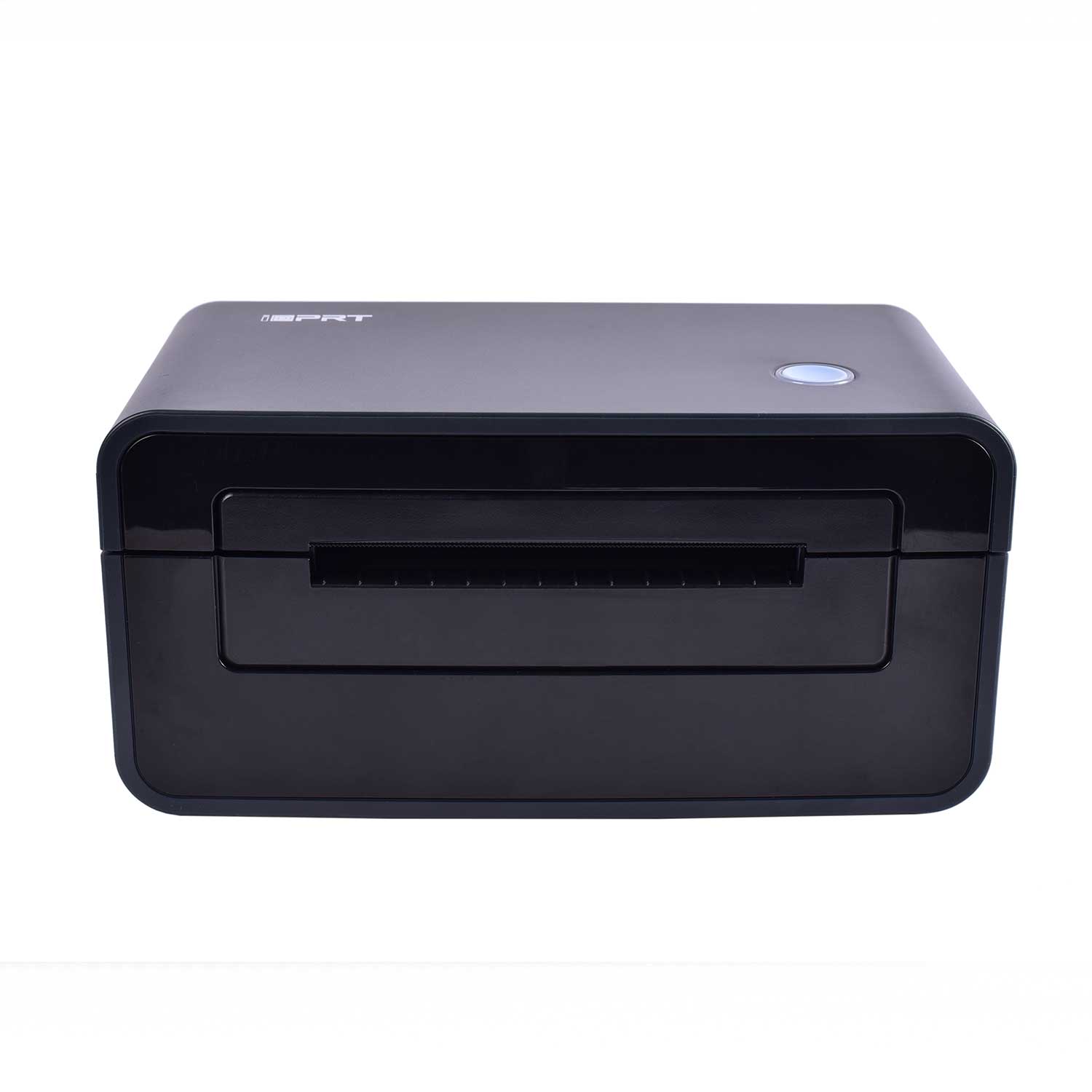
SP310 — budget pick, small labels up to 3 inches, best for low-to-medium volume. SP320 — faster, sturdier sibling of the SP310, best for high-volume small-label printing. SP410 — USB-only 4-inch workhorse for shipping labels and big hang tags, external label roll. SP410BT — our most popular pick, 4-inch printing with Bluetooth for at-home printing. SP420 — enclosed label roll for a clean counter, USB-only, 4-inch printing. SP420BT — top of the line, enclosed roll, 4-inch printing, plus Bluetooth.
See the full comparison on our Find Your Printer page.
Still stuck?
A real person on our team will help you. No bots, no ticket queue. Email support@syncrostore.com.
